How to make a motion video with Claude, and edit it
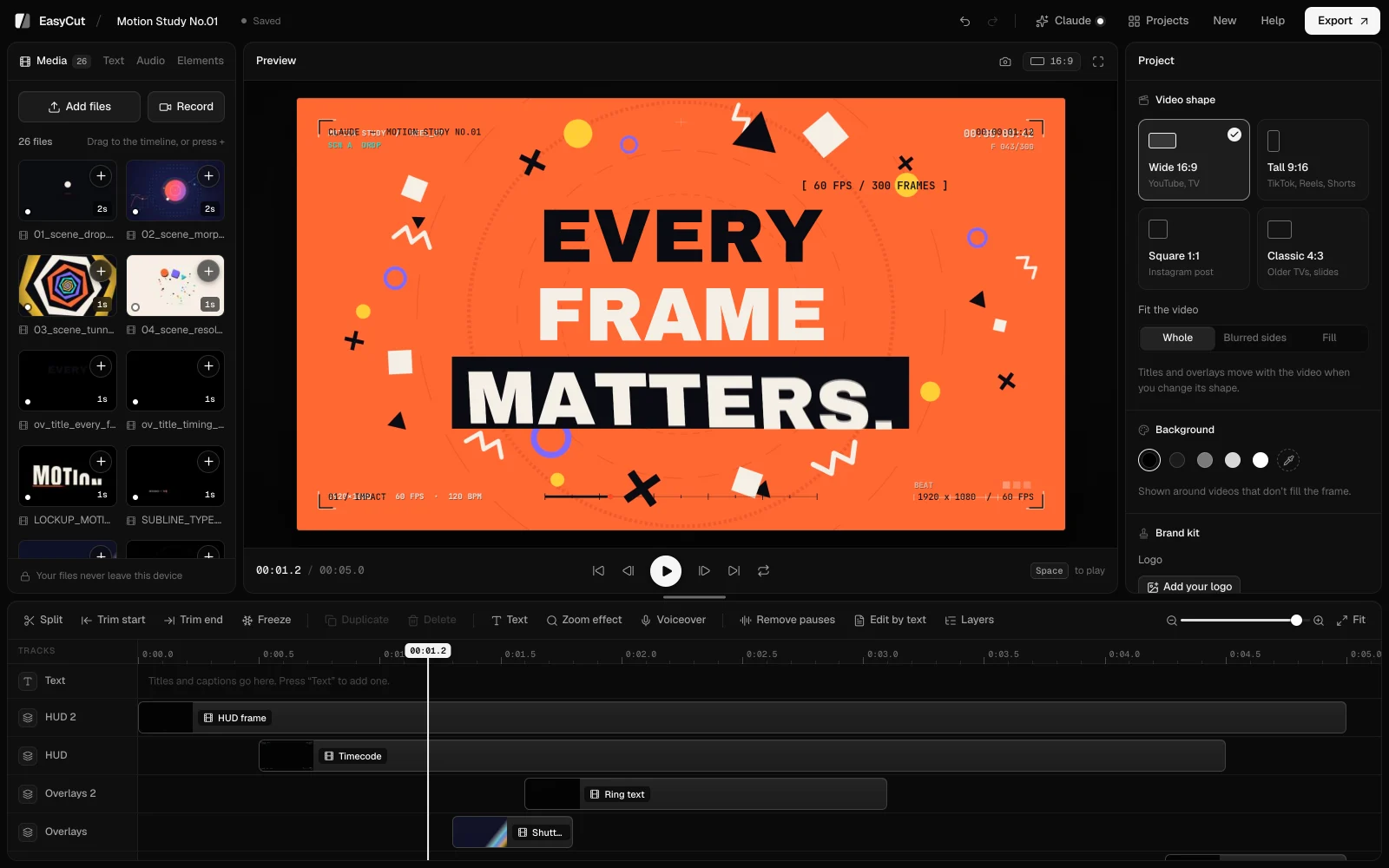
Claude can design and animate a whole motion graphics video in code: bold typography, transitions, its own music and sound effects. Usually you get one finished file, and changing one word means making the whole video again. Here’s how to get it as separate parts instead, every title, scene and sound on its own track, and finish it in a real editor.
What you need
- Claude Desktop or Claude Code. Using claude.ai in the browser works too, with one extra step (see below).
- EasyCut, the free editor at easycut.studio/app. Nothing to sign up for.
- Google Chrome or Microsoft Edge on a computer, for exporting.
1 Add EasyCut to Claude
This connects Claude to EasyCut, so it can open the videos it makes straight in the editor. You do it once.
Claude Desktop: download the EasyCut extension and open it. Claude asks to install it: press Install.
Claude Code: run this once in a terminal (it needs Node.js 18 or newer):
claude mcp add easycut -- npx -y easycut-connector@latest
Using claude.ai in the browser? It can’t reach EasyCut by itself. Ask Claude for the parts as downloads, then open them from EasyCut’s Claude panel: EasyCut guesses what each file is from its name.
2 Turn on Claude in EasyCut
Open EasyCut and press Claude at the top. Turn it on. If your browser asks to let EasyCut reach apps on this device, choose Allow: that’s how the page talks to the connector on your computer. The dot next to Claude fills in once it’s connected.
3 Ask Claude for the video
Say what you want, and ask Claude to open it in EasyCut. For example:
Make a dynamic 40-second motion graphics video for the script below. Go all out, like it's your showreel: bold typography, smooth camera moves, cuts on the beat, and great music and sound effects. Wide 16:9, ending on the logo.
Open it in EasyCut.

Script:
…
Give it the length, the shape (wide 16:9 for YouTube, tall 9:16 for Reels and TikTok, square for a post), the style and your script. You don’t need to tell it how to deliver the video: the connector asks Claude to plan it as separate parts from the start, every scene, title and sound effect its own file. Claude then makes it its own way and sends it over.
4 Edit it clip by clip
The video opens in EasyCut as a new project. Every part is its own clip, on named tracks: the scenes on the video track, titles and overlays above them, and the music, hits and whooshes below.
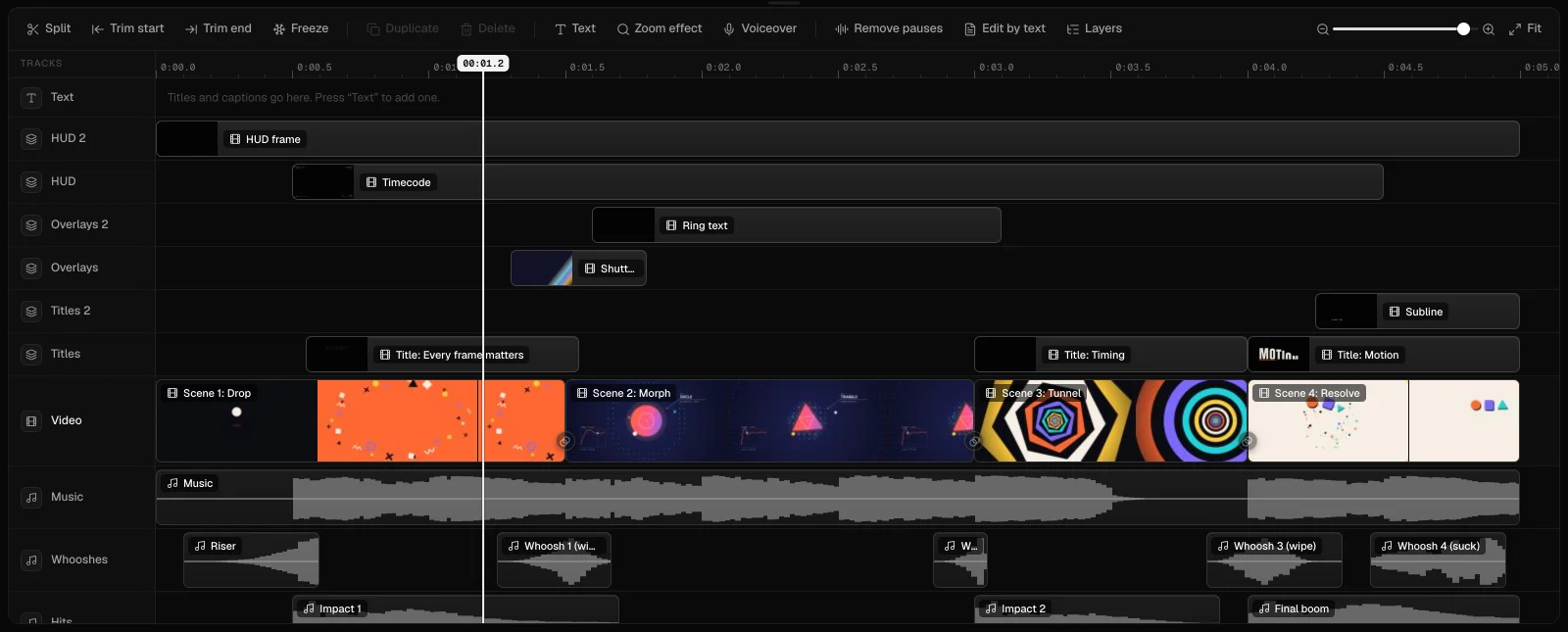
From here it’s normal editing. Drag a clip’s edges to trim it, drag it to move it, or press Delete. A few things that help with videos like these:
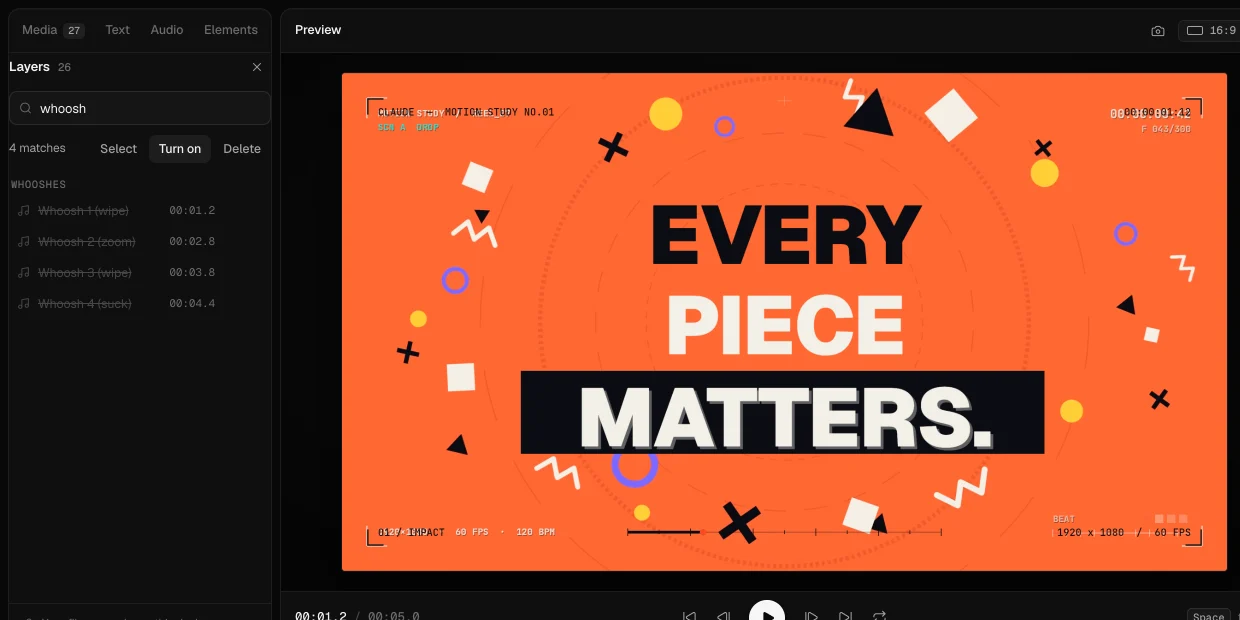
- Layers, in the timeline’s toolbar, lists every clip. Type a name, say “whoosh”, and turn them all off at once, or hide a title, or delete what you don’t need.
- Your own music: drop a song in, select it and press Fit to the video. EasyCut cuts the middle out on the beat and keeps the song’s real ending, so it ends exactly when the video does.
- Slow motion: put the playhead on a moment, select the scene and press Slow-mo here. The speed eases in and out, sound included.
5 Change one part with Claude
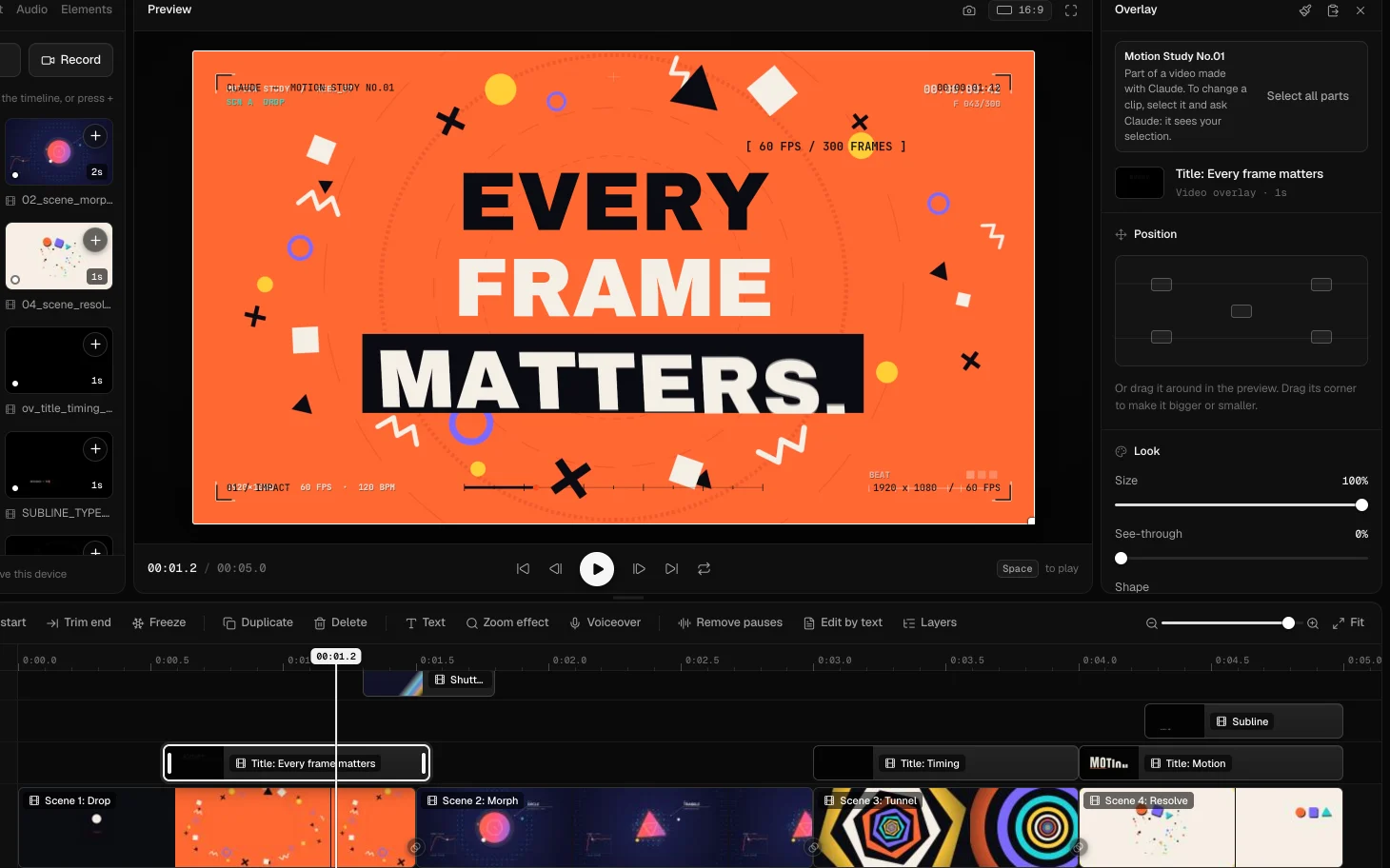
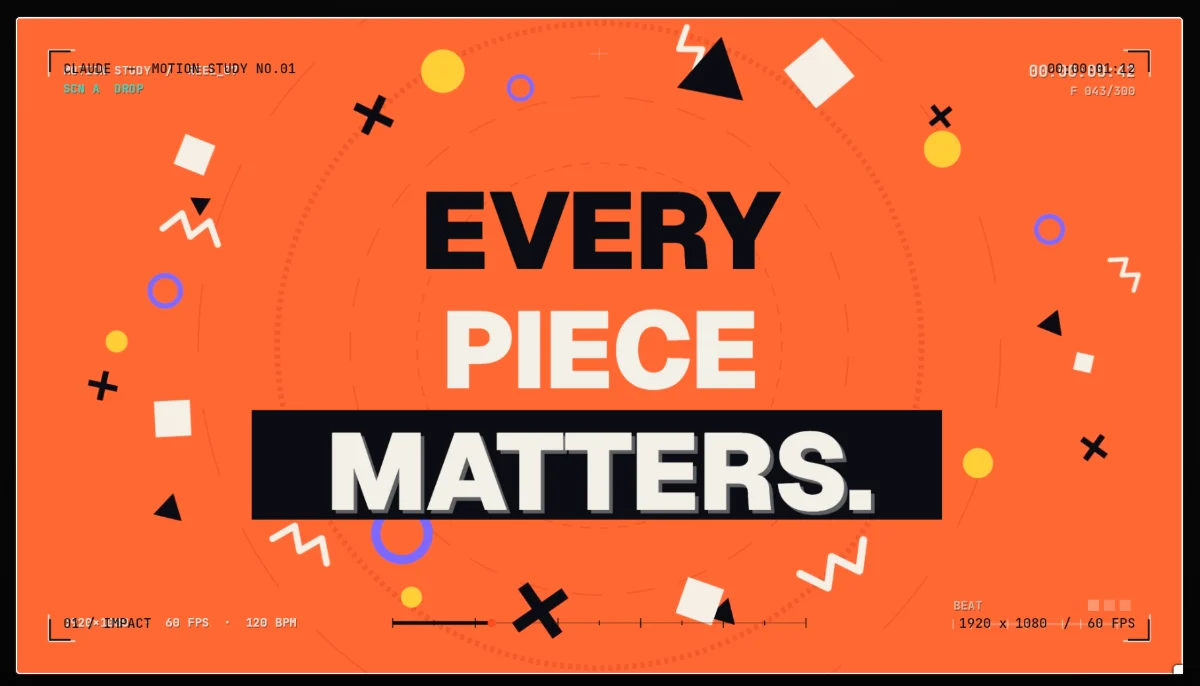
Some changes need Claude, like new words in an animated title. Select the part in EasyCut, then ask Claude, for example: “Make this title say ‘Every piece matters.’” Claude sees what’s open and what you selected, re-renders just that part and swaps it in. It stays where you put it, with your trims, and one Undo takes the change back.
6 Export
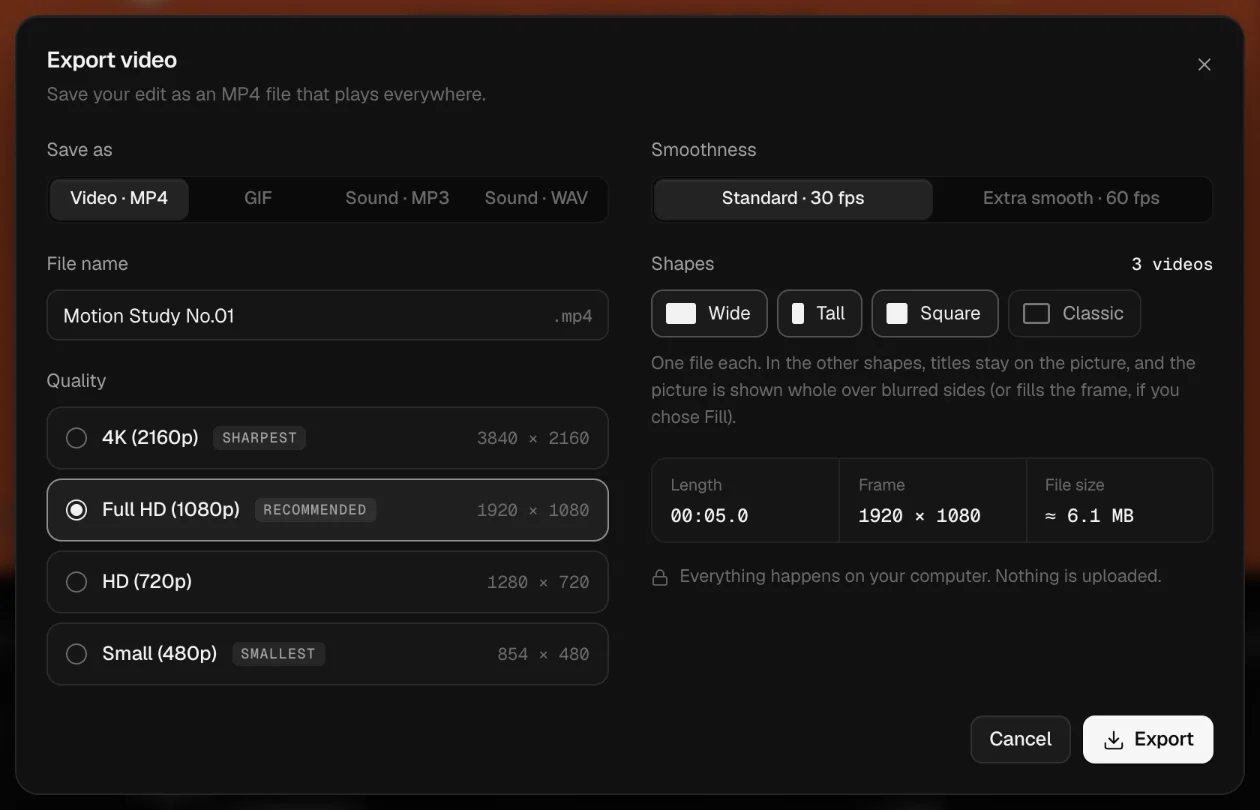
Press Export. Choose the quality (up to 4K) and smoothness (30 or 60 fps). Need it for more than one place? Tick Wide, Tall and Square to get all three at once: the titles stay on the picture in each. EasyCut also saves GIFs, and the sound alone as MP3 or WAV.
Questions
Why separate parts, and not one finished video?
A finished file can’t be changed: a typo in one title means making the whole video again. With every part separate, you change only what you need, keep everything else, and swap in your own music or voice.
Is my video uploaded anywhere?
No. Claude’s files go from your computer to EasyCut in your browser, and stay on your computer. EasyCut has no account and no upload.
Is it free?
Yes. No trial, no watermark, no account.
Can I edit videos I didn’t make with Claude?
Yes. EasyCut is a full video editor: add your own videos, photos and music, record your screen or camera, add captions, and export.